
PhotoRobot Makros Konfigurasie- en Funksionaliteitsgids
Die volgende gebruikersgids beskryf die konfigurasie en funksionaliteit van makro's in die PhotoRobot Controls-app ("CAPP"). Makro's is 'n baie kragtige outomatiseringshulpmiddel wat ontwerp is om selfs die mees komplekse vasleggingswerkvloeie oor een of verskeie vouers (draaie, stilbeelde, ens.) te stroomlyn. Ver buite die uitvoering van basiese opdragte, laat Makros jou toe om jou ateljeeproduksie ten volle te outomatiseer.
Byvoorbeeld, jy kan 'n volgorde programmeer om te pauzeer sodat jy 'n voorwerp fisies onderstebo kan draai en sy ander hemisfeer in 'n aparte vouer kan vasvang. Dit is 'n noodsaaklike funksie om die onderkant van items op enige masjien wat nie van onder af fotografeer nie te fotografeer nie (anders as die PhotoRobot Frame 3D-draaitafel). Dit is dan moontlik om spesifieke rame outomaties uit 'n draai te haal en dit in 'n statiese beeldgalery te kopieer, wat die behoefte om dieselfde hoeke twee keer te fotografeer heeltemal uitskakel.
Of jy nou outomatiese beeldredigerings moet doen, werkruimtes en voorinstellings moet toepas, of aksies via strepieskodes en etikette moet aktiveer, bied Makro's eindelose moontlikhede om jou fotografieproses drasties te versnel.
1 - Hoe om PhotoRobot-makro's te besigtig en aan te pas
Om 'n makro te sien of sy basiese instellings (naam, strepieskode, etiket, notas) aan te pas, maak Instellings in CAPP oop en klik op Makro's in die sybalk-kieslysopsies.
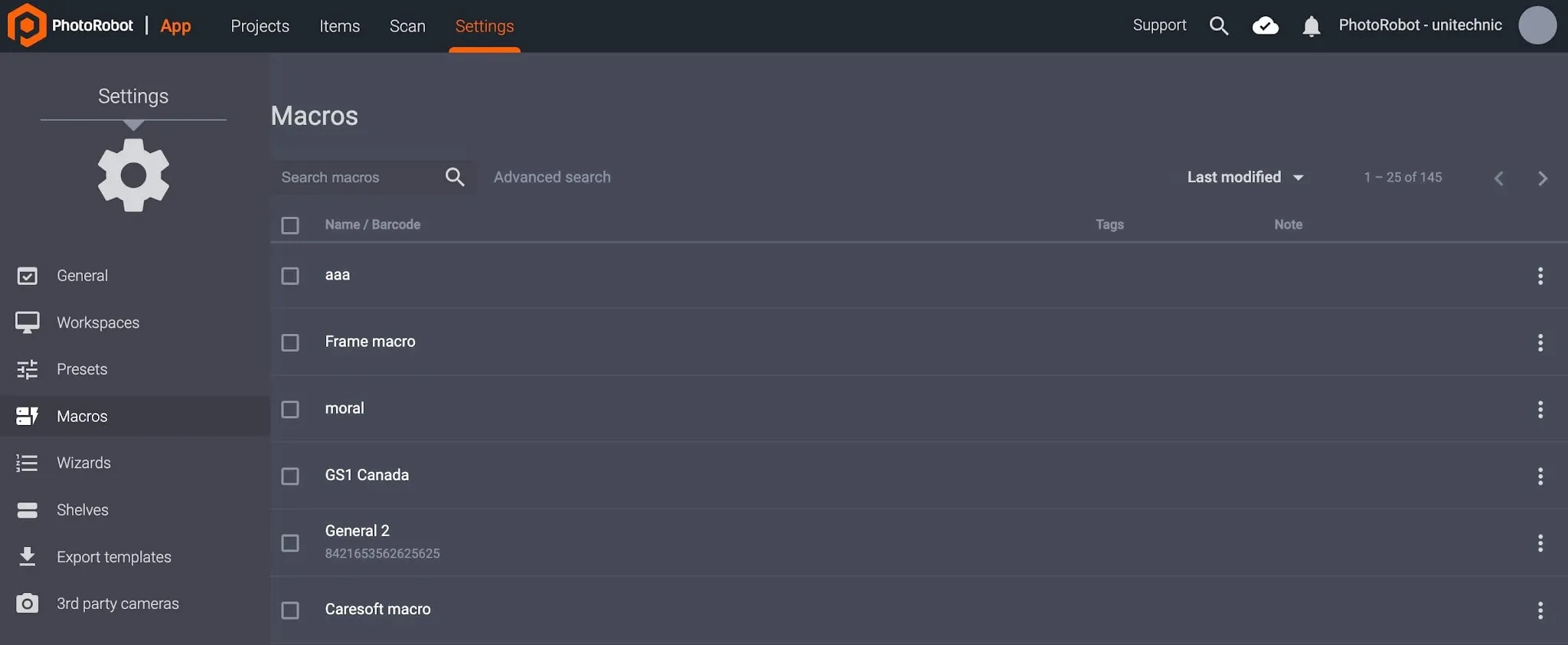
- Gebruik Gevorderde soektog bo-aan die lys makro's om 'n makro volgens naam te vind, of kies individueel makro's deur op 'n makronaam uit die lys te klik.
Let wel: As 'n makro gekies word, word die makro met sy opdragte in leesalleen-modus vertoon. Gebruikers kan egter Naam, Strepieskode, Etikette of Nota hier konfigureer.
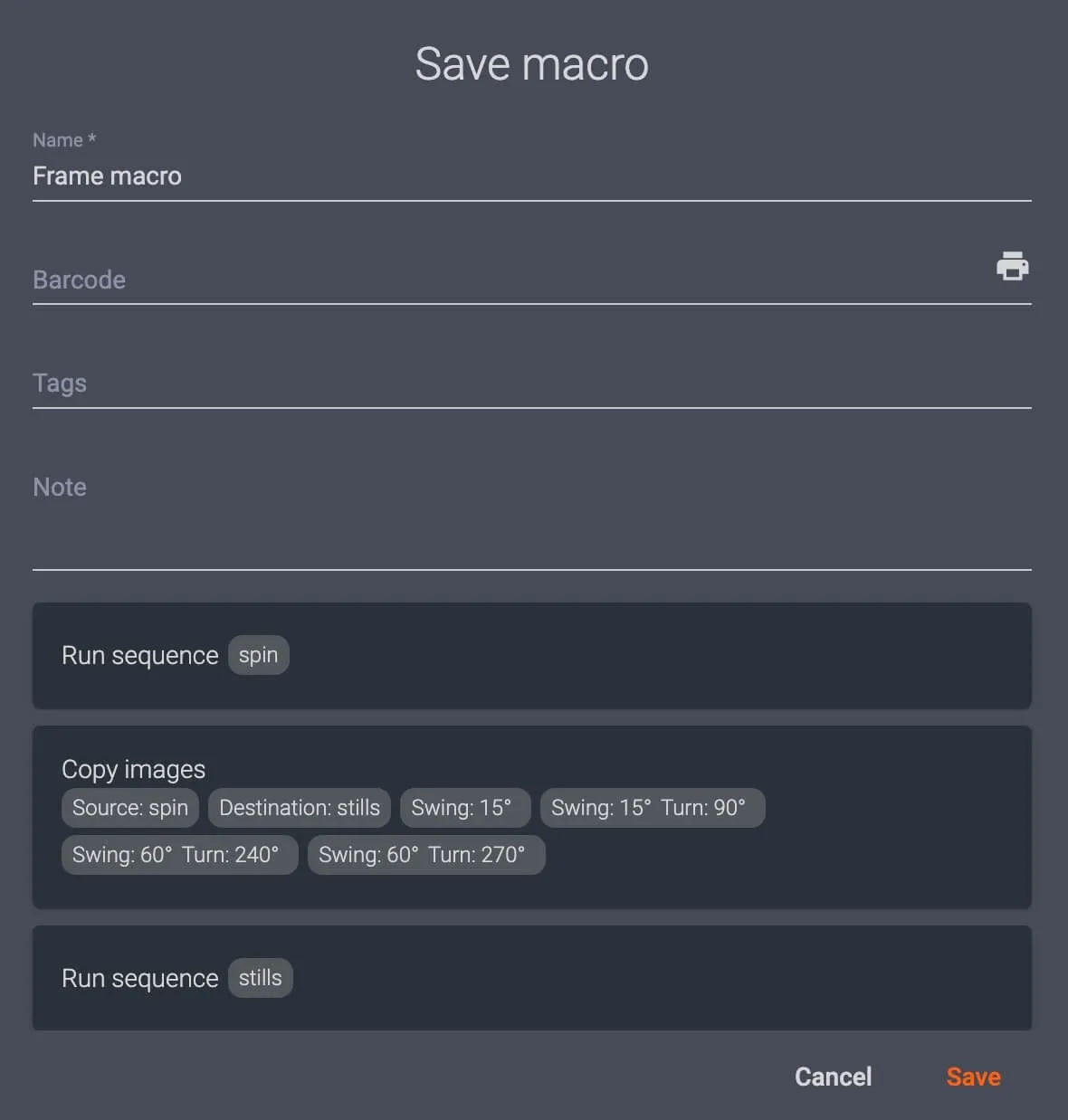
- As jy enige velde aanpas, klik op Stoor in die onderste regterkant van die Makro-dialoog om gebruikersinstellings te bevestig.
2 - Hoe om 'n nuwe makro te skep
Om 'n nuwe makro te skep, skep 'n nuwe item of maak enige bestaande item in die plaaslike weergawe van CAPP oop.
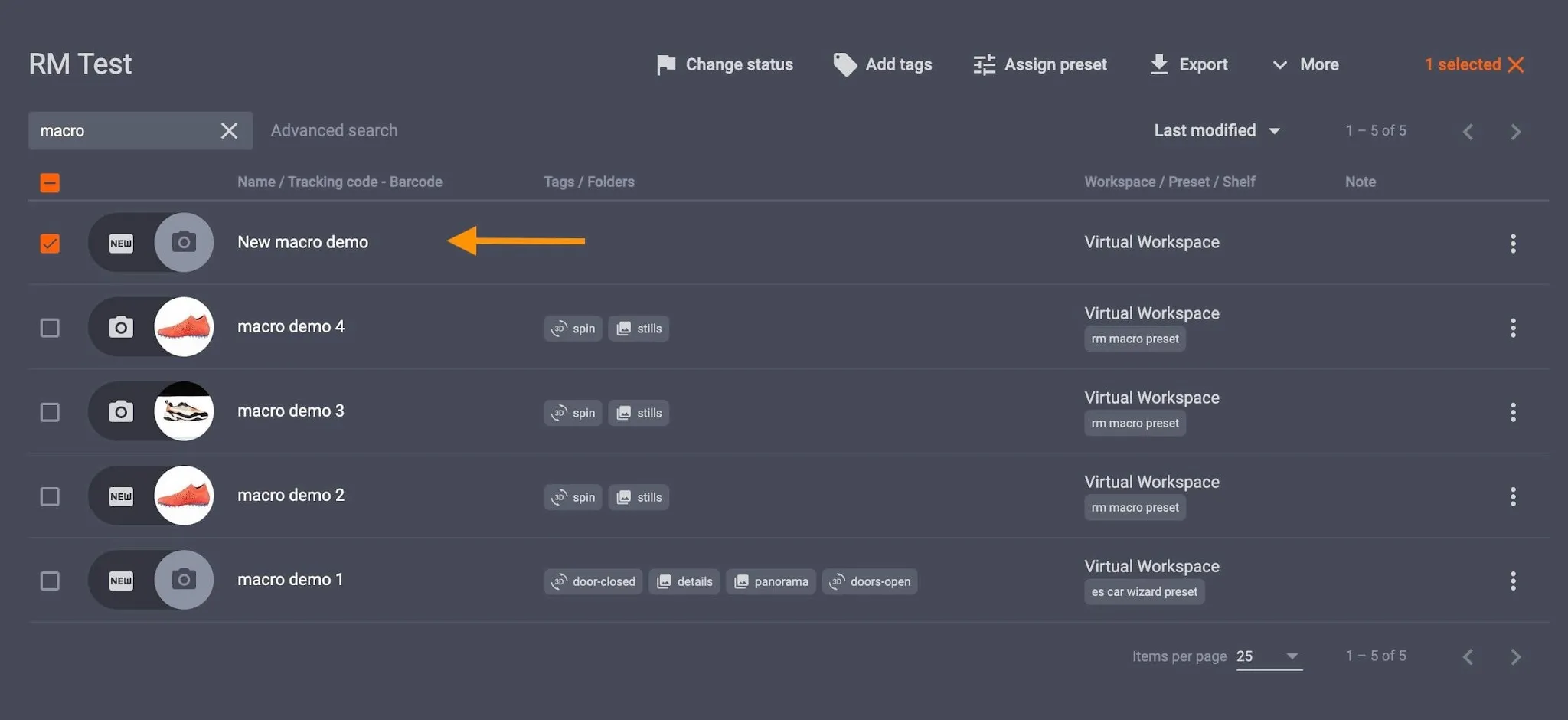
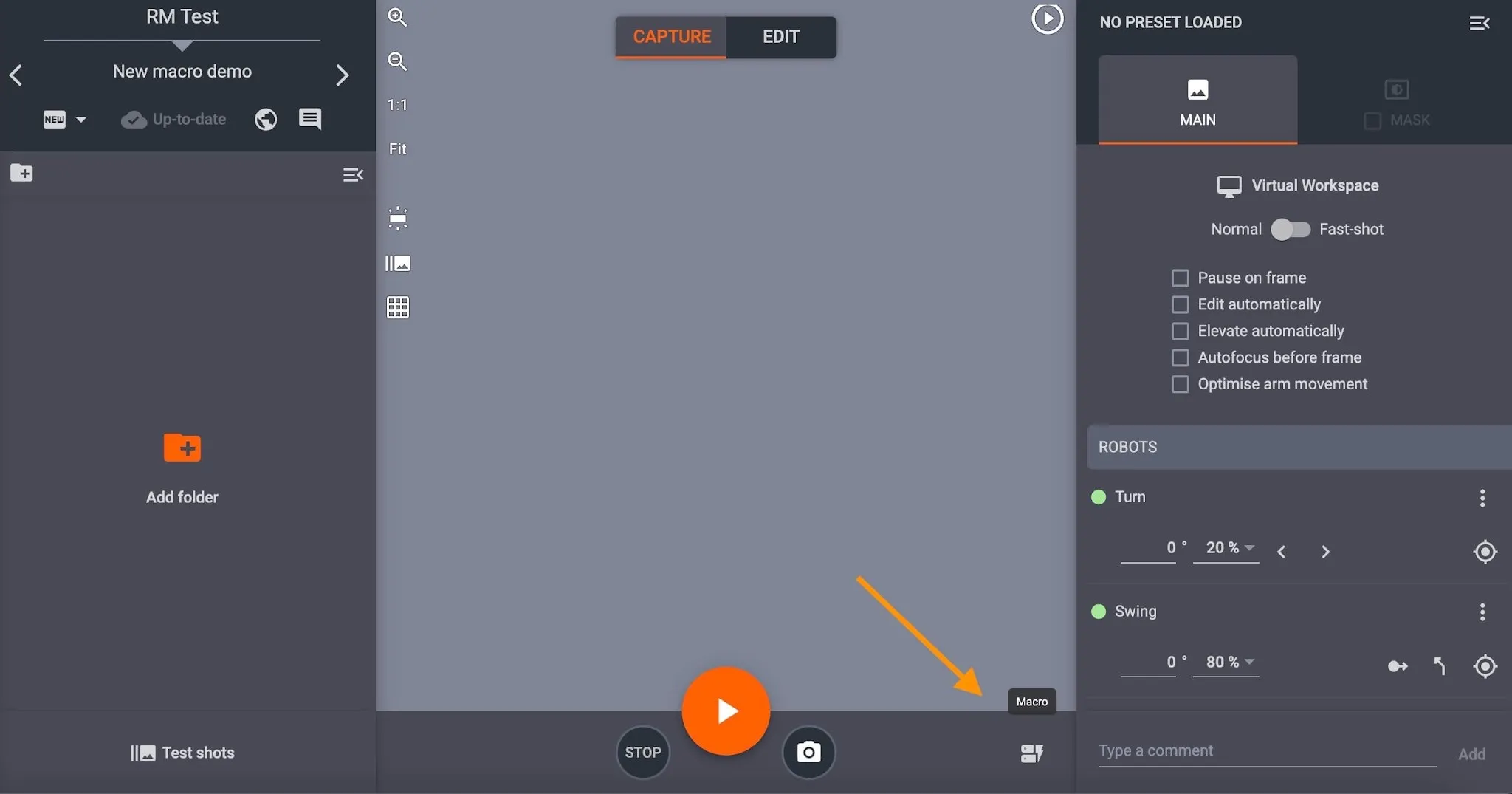
Binne die item is die knoppie om Makro's te bereik in die onderste regterkant van die vasleggingsmodus-koppelvlak. Toegang tot makro-instellings deur op die Makros-knoppie te klik en Nuwe makro.
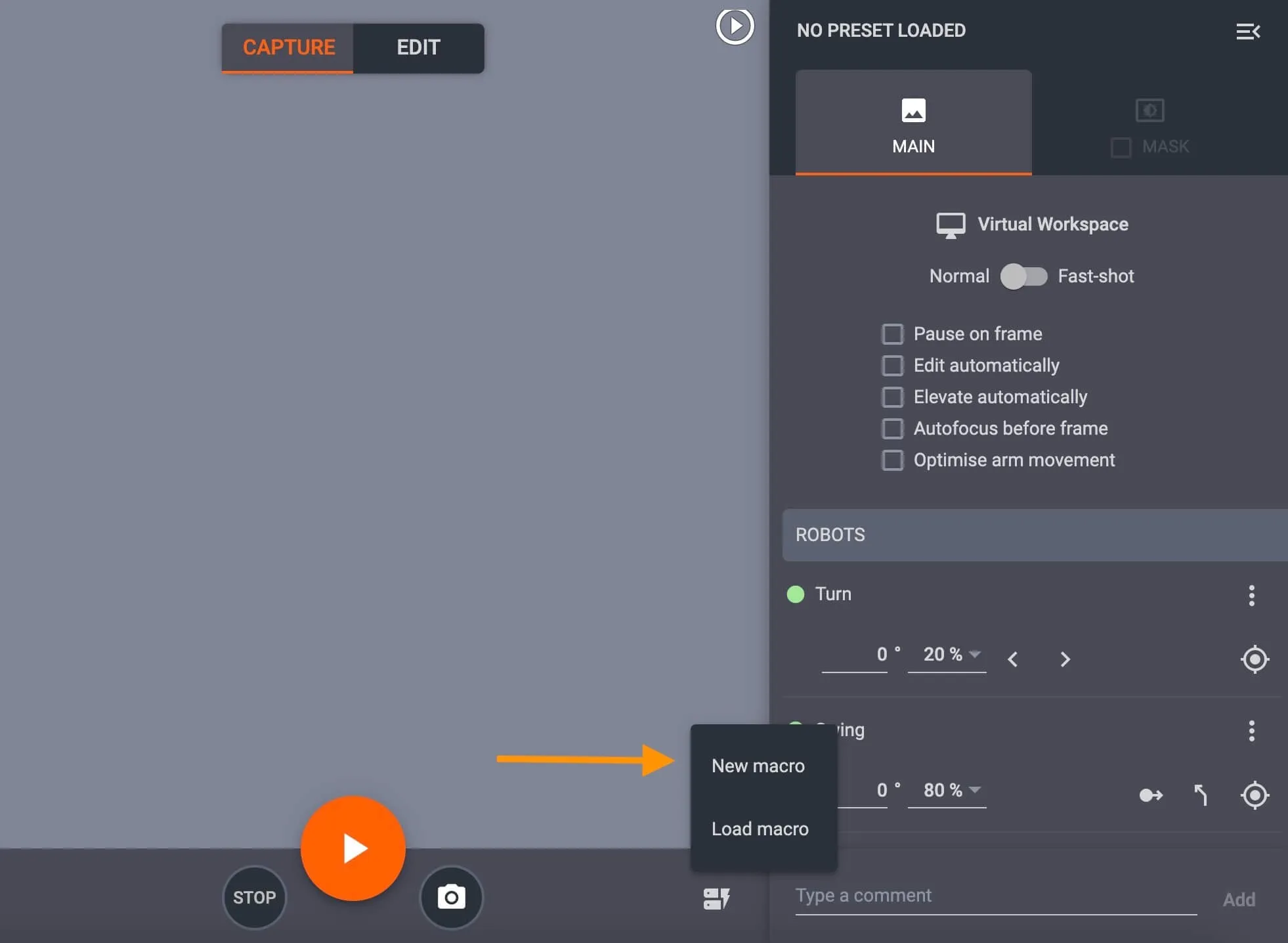
Wanneer 'n nuwe makro geskep word, sal 'n pop-up boks oopgaan om die makro volgens naam en opdragte te definieer.
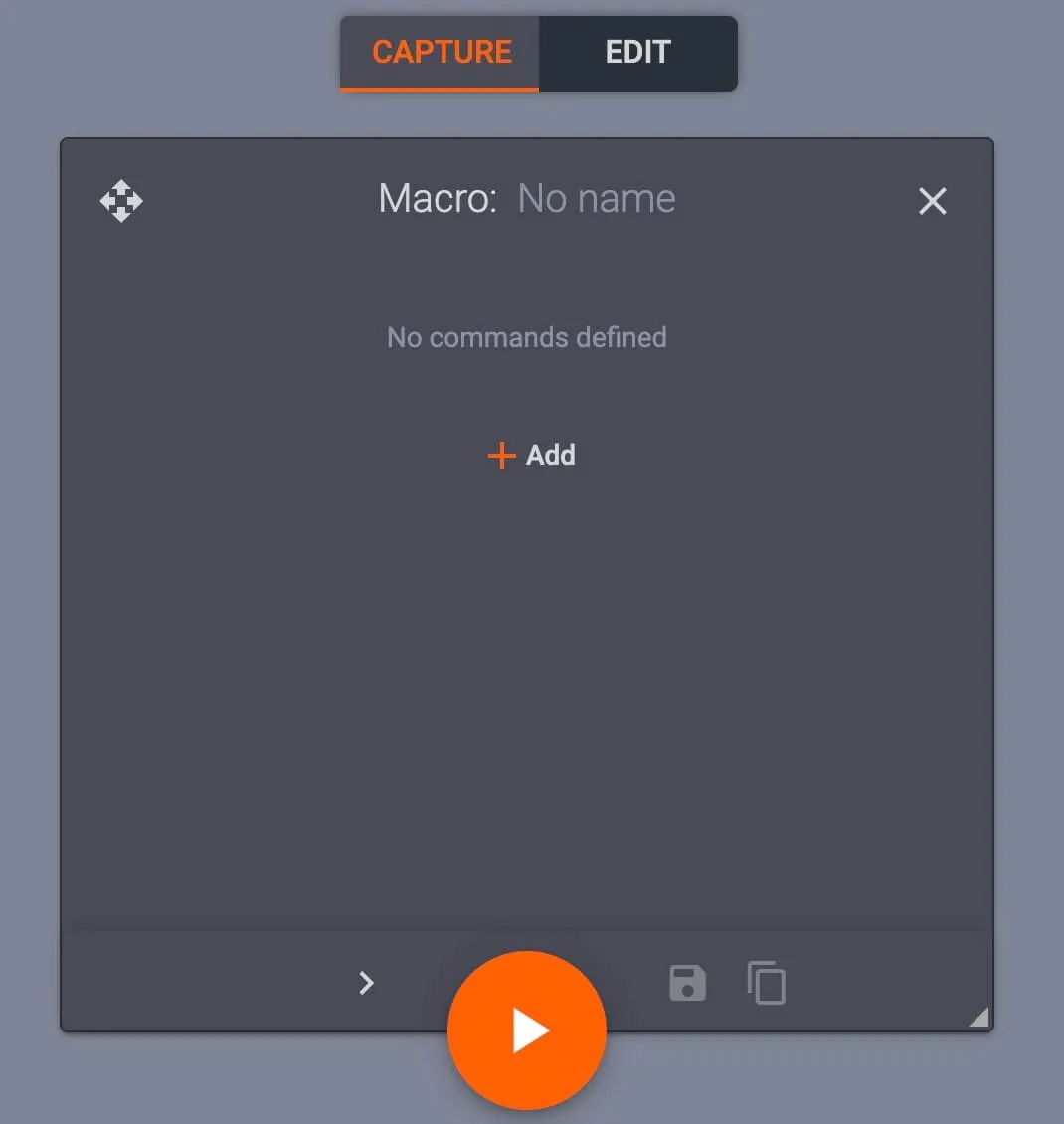
Klik op die veld bo-aan die makro-dialoog om die naam te stel, en tik + Voeg by om makro-opdragte te konfigureer.
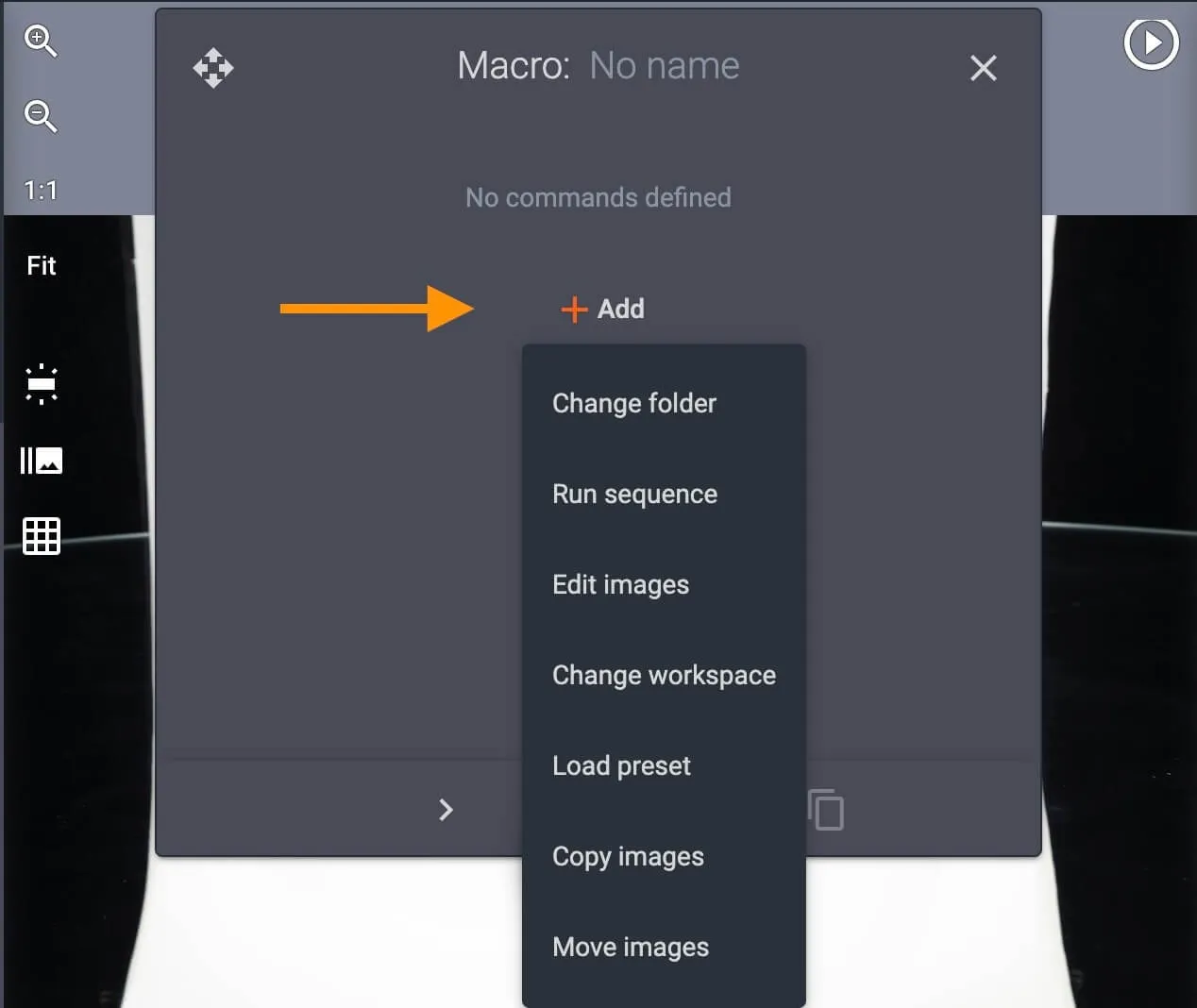
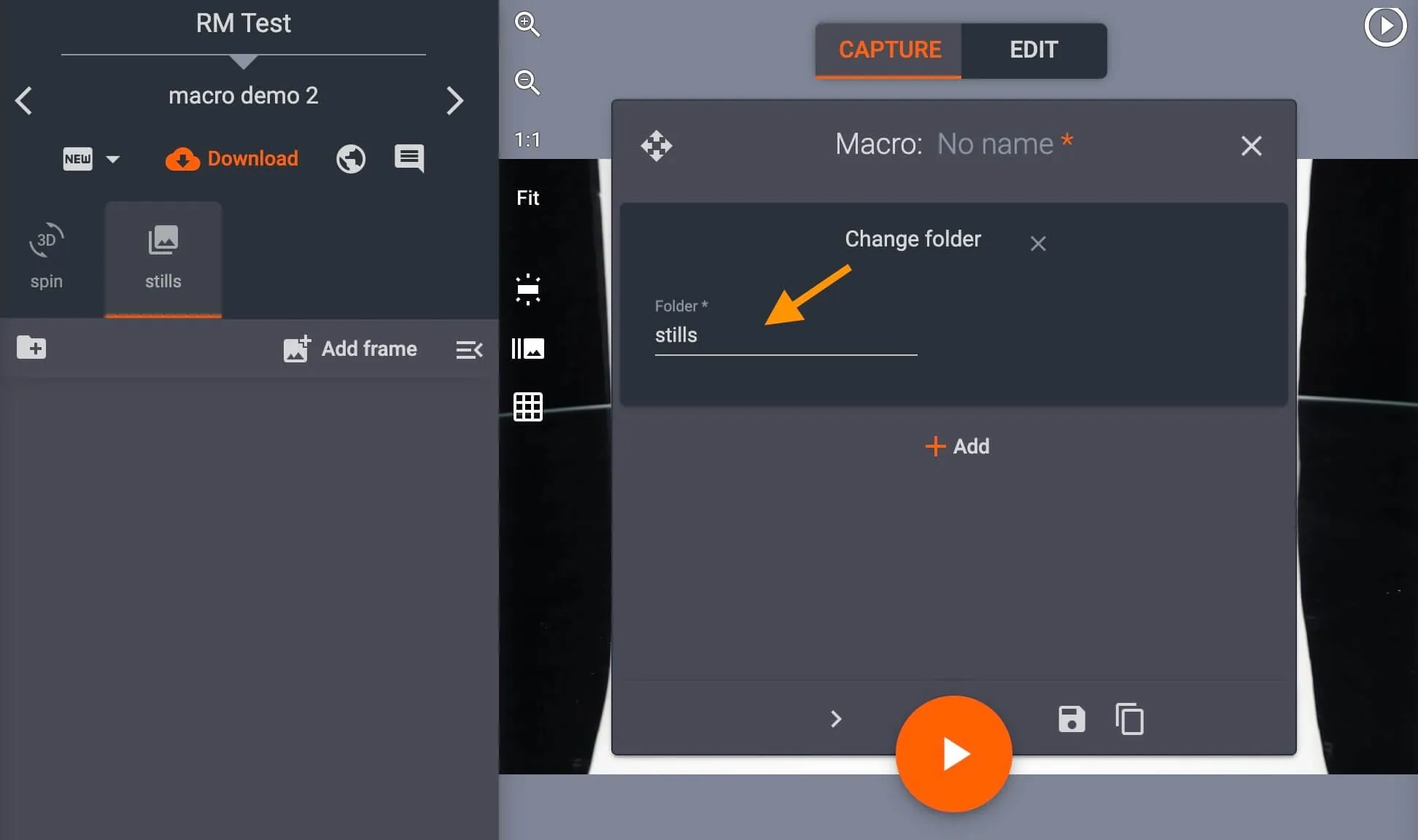
Stel verander vouer op om opdragte op 'n bestaande vouer uit te voer, byvoorbeeld op 'n spin- of stilmap.
Stel Run-volgorde in om 'n volgorde te laat loop, byvoorbeeld: slegs op 'n spin-vouer, of om te spesifiseer in watter vouer die volgorde moet loop (slegs stilbeelde, slegs spin, ens.).
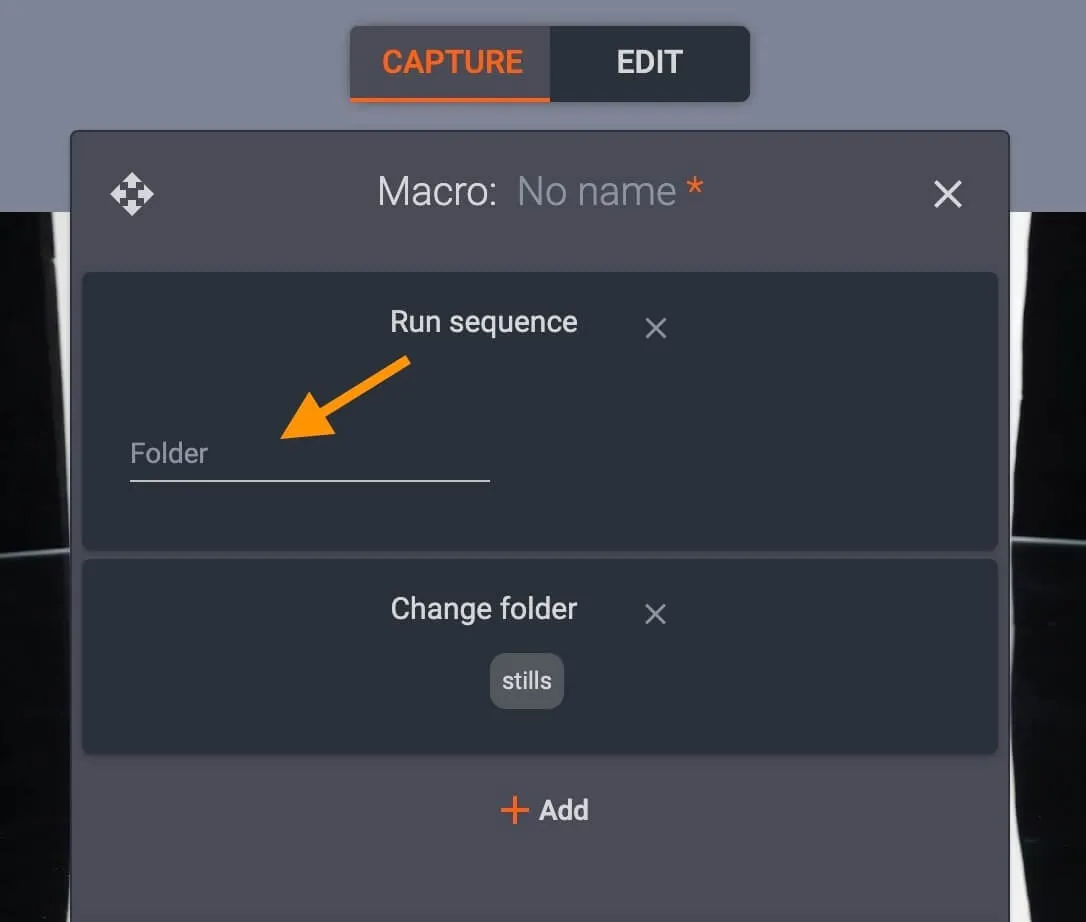
Gebruik Kopieer-beelde om bron- en bestemmingsgidse van spesifieke swaai- of draaihoeke te spesifiseer om te kopieer.
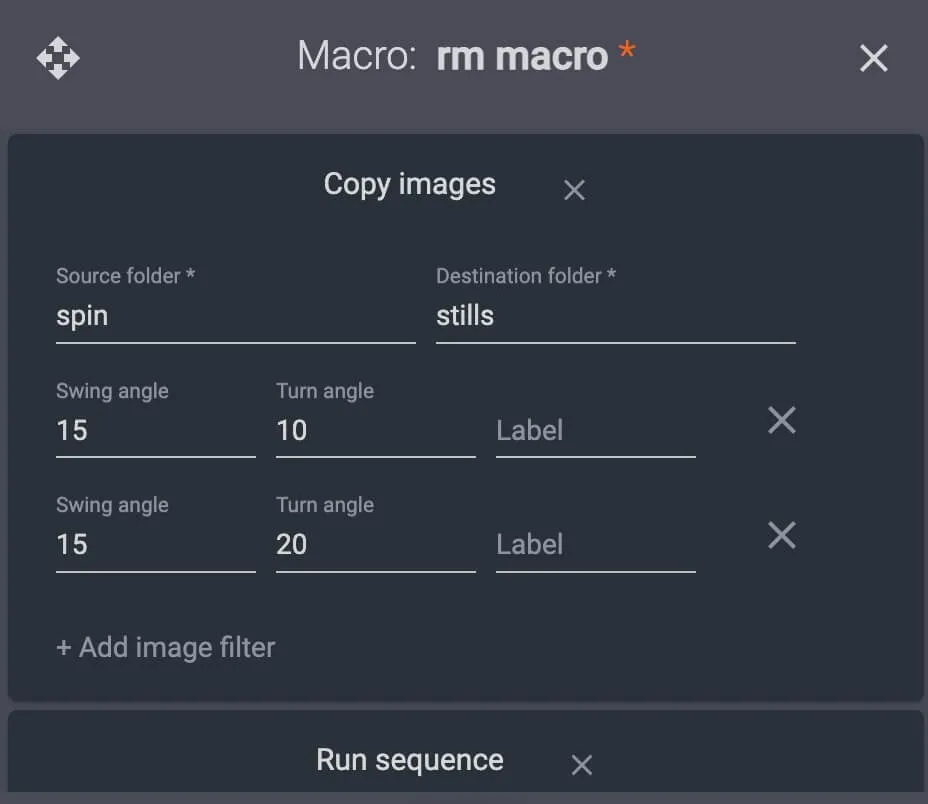
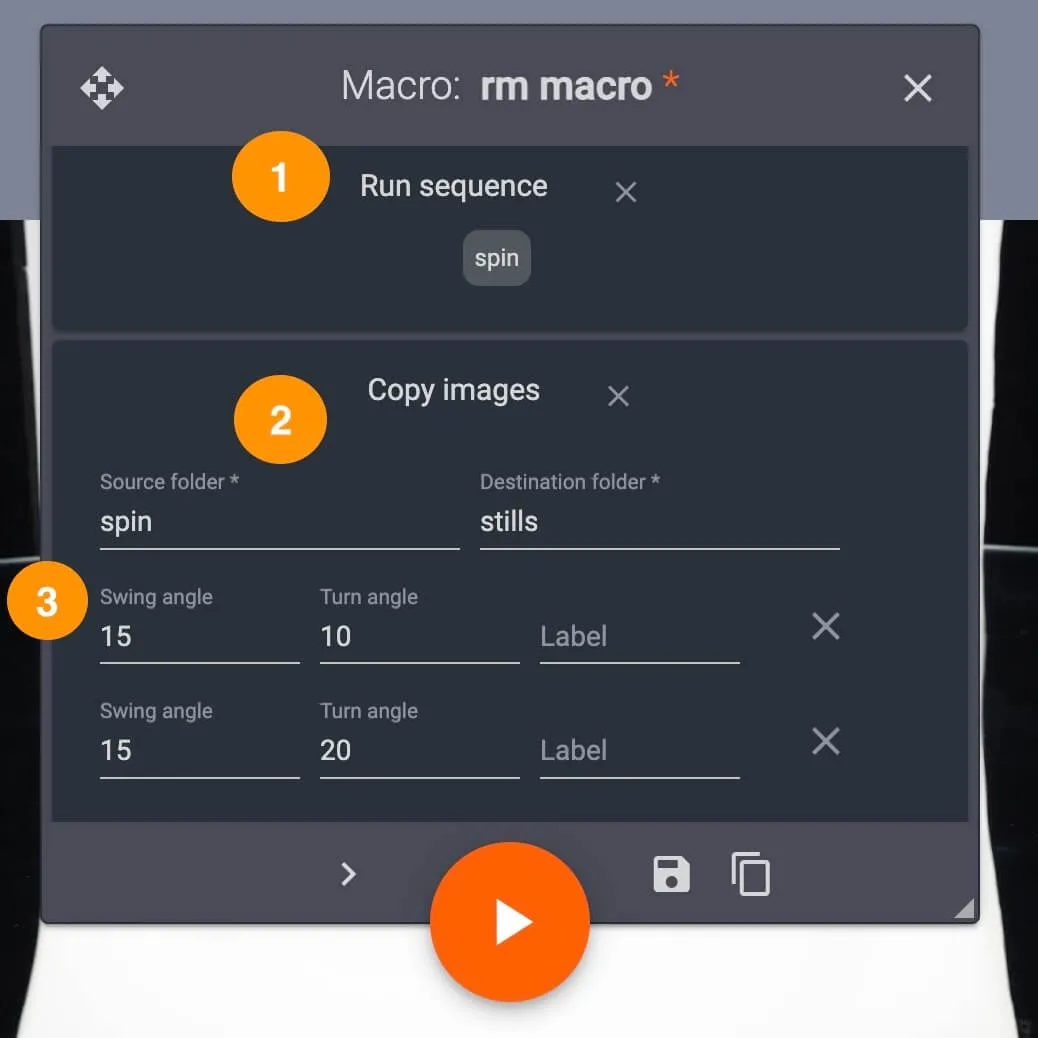
Byvoorbeeld, 'n makro kan die stelsel opdrag gee om 'n draai van 360 vas te lê en twee rame uit die spin-lêergids in 'n aparte stilmap te kopieer.
In hierdie geval is makro-opdragte Run sequence (1) op die spin-lêergids, Kopieer beelde (2) vanaf die spin-lêergids na 'n stills-lêergids, en Kopieer spesifieke swaai- en draaihoeke (3) in die stills-lêergids:
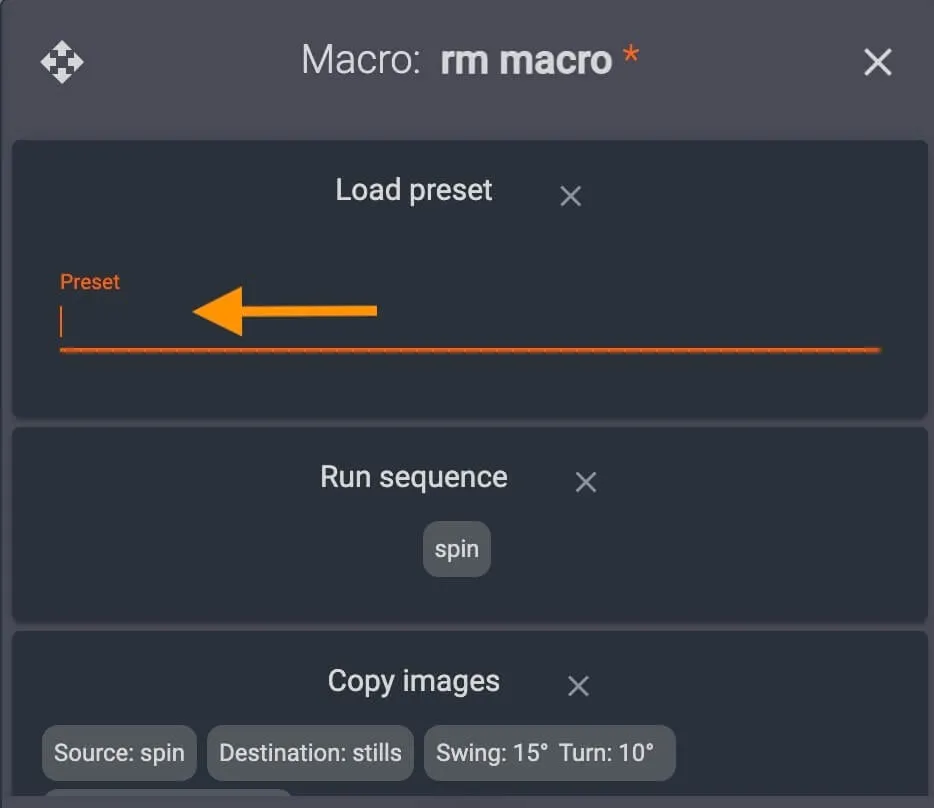
Dikwels sluit 'n makro ook een of meer voorafinstellings in. Gebruik die Laai-voorinstelling om individuele of veelvuldige voorinstellings aan die nuwe makro toe te ken, of kies voorafinstellings deur op die leë voorinstellingsveld te klik.
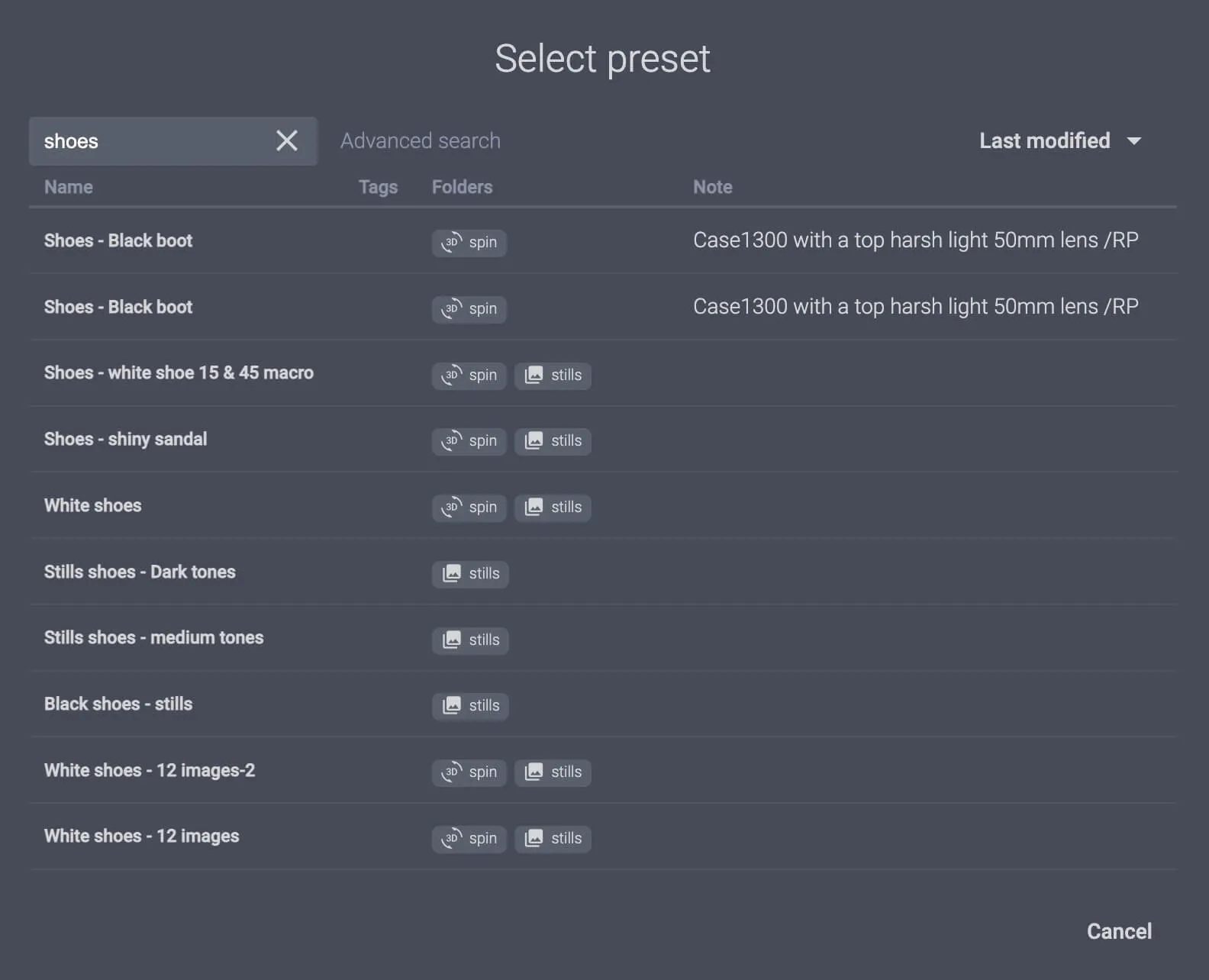
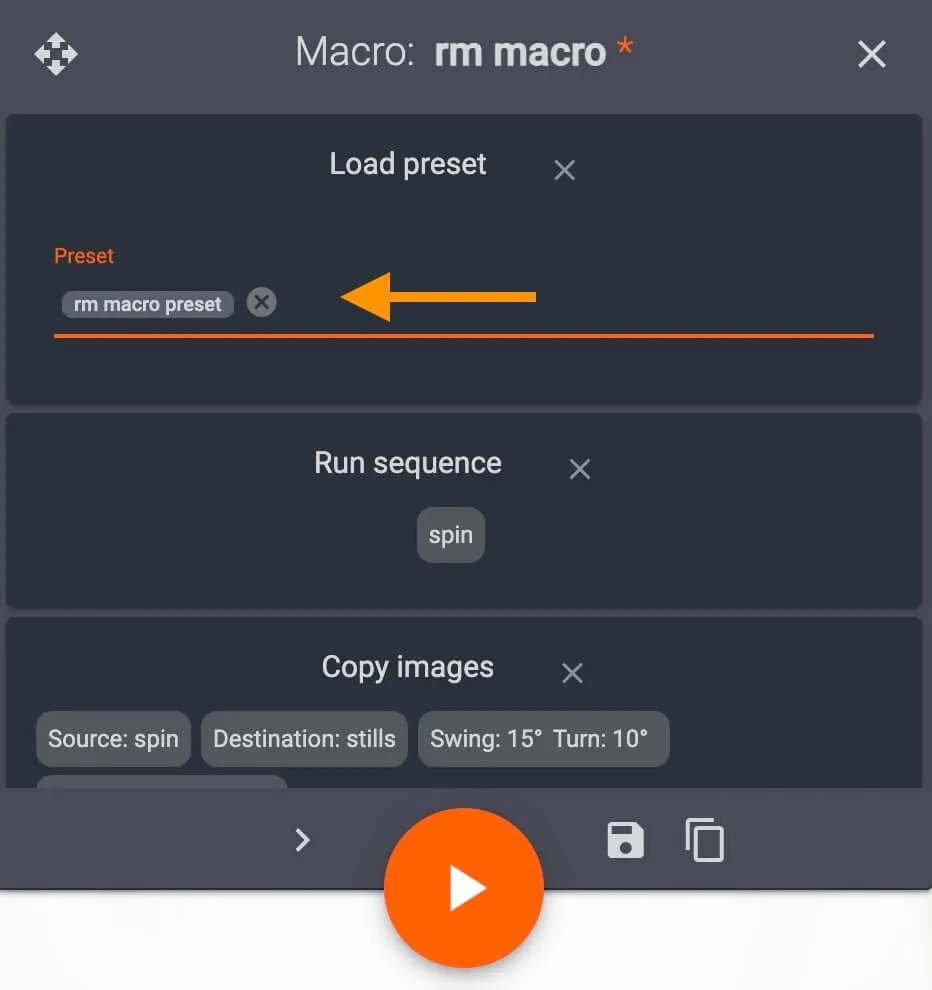
Nadat al die opdragte toegewys is, stoor die nuwe makro deur op die lêerikoon in die onderste regterkant van die makro-instellingsboks te klik.
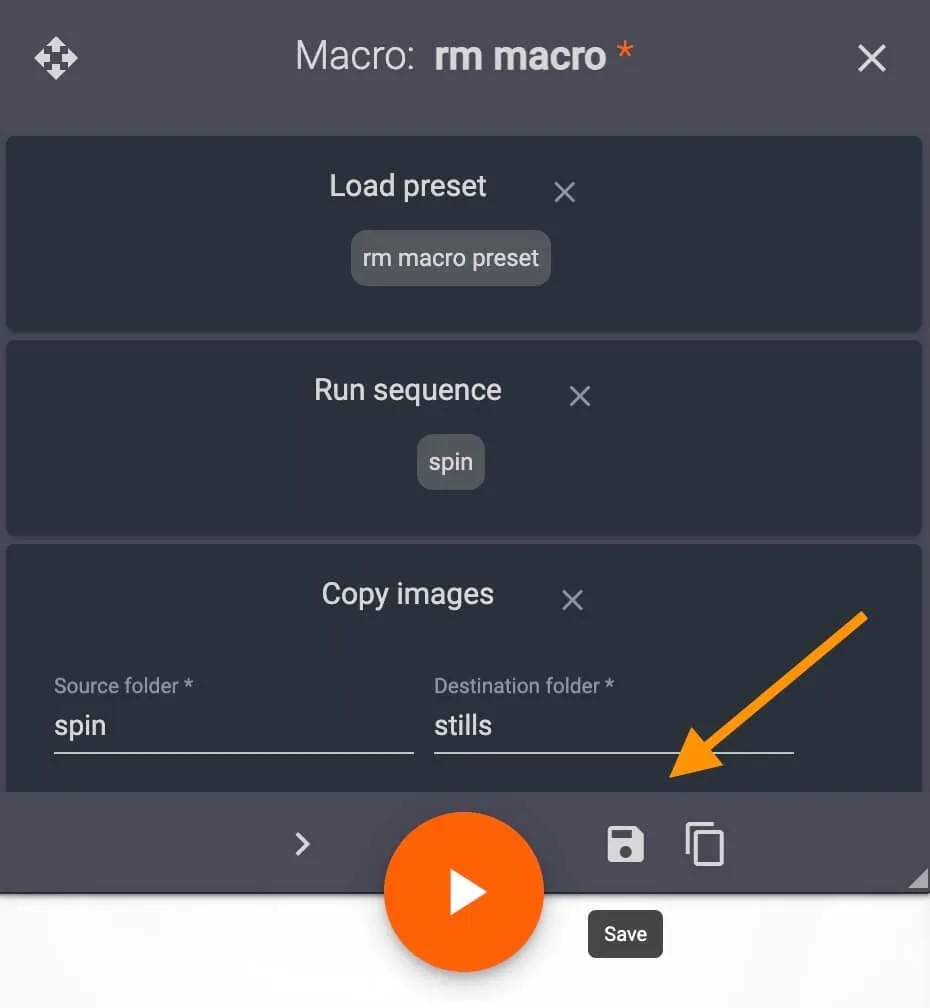
Die makro word nou in die stelsel gestoor, en dit kan op een van twee maniere vir enige item gelaai word.
3 - Hoe om 'n bestaande makro te laai
Om 'n makro te laai, maak enige item in CAPP oop en tik op die knoppie vir Makro's aan die onderste regterkant van die vasleggingsmodus-koppelvlak.
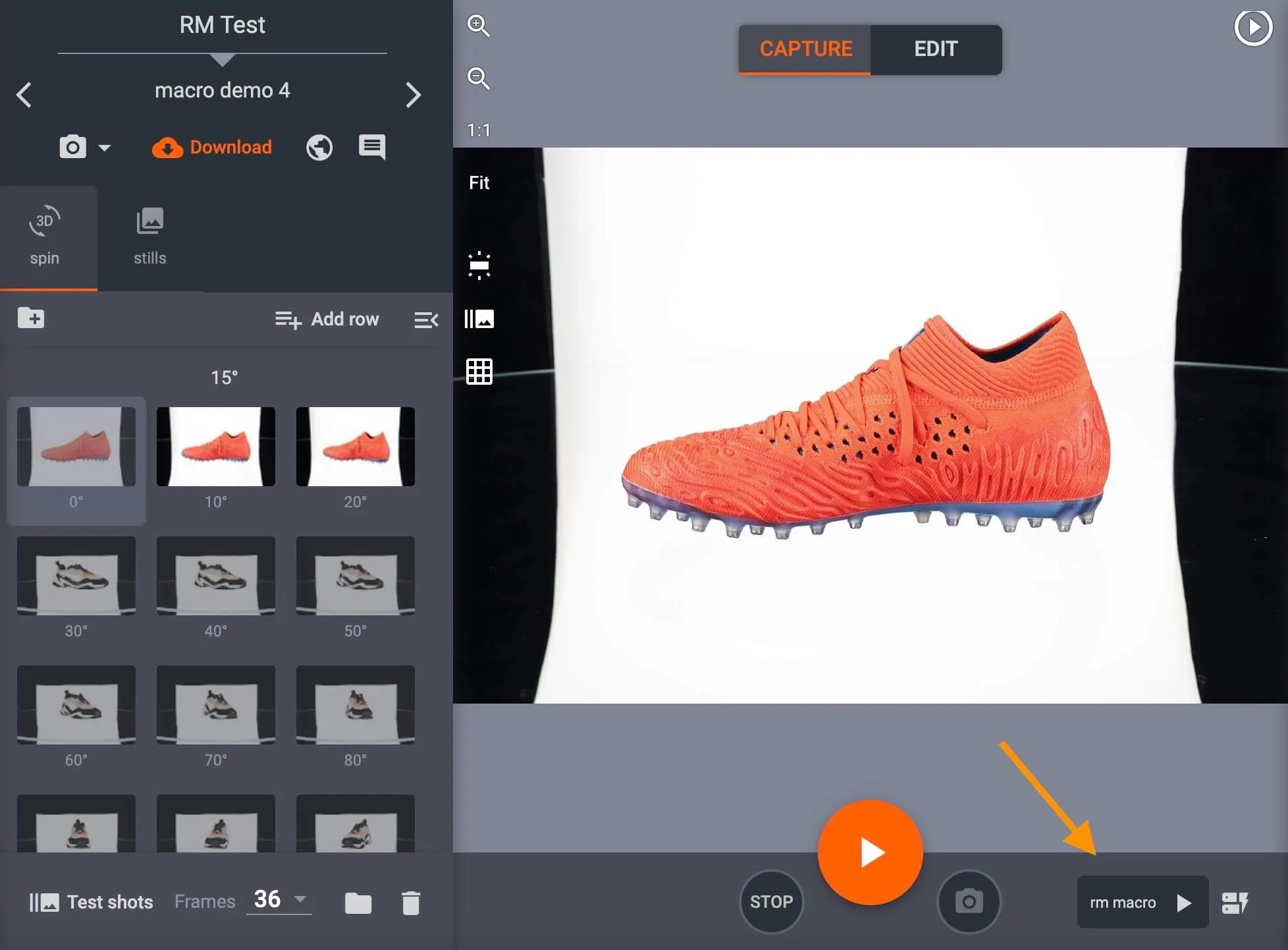
- Die naam van die vorige makro wat gebruik is, sal links van die Makros-knoppie vertoon word.
- Klik op die beginknoppie langs die makro se naam om hierdie makro te laai.
As jy 'n ander makro laai, gebruik die Makros-knoppie aan die regterkant om uit al die makro's in die stelsel te kies.
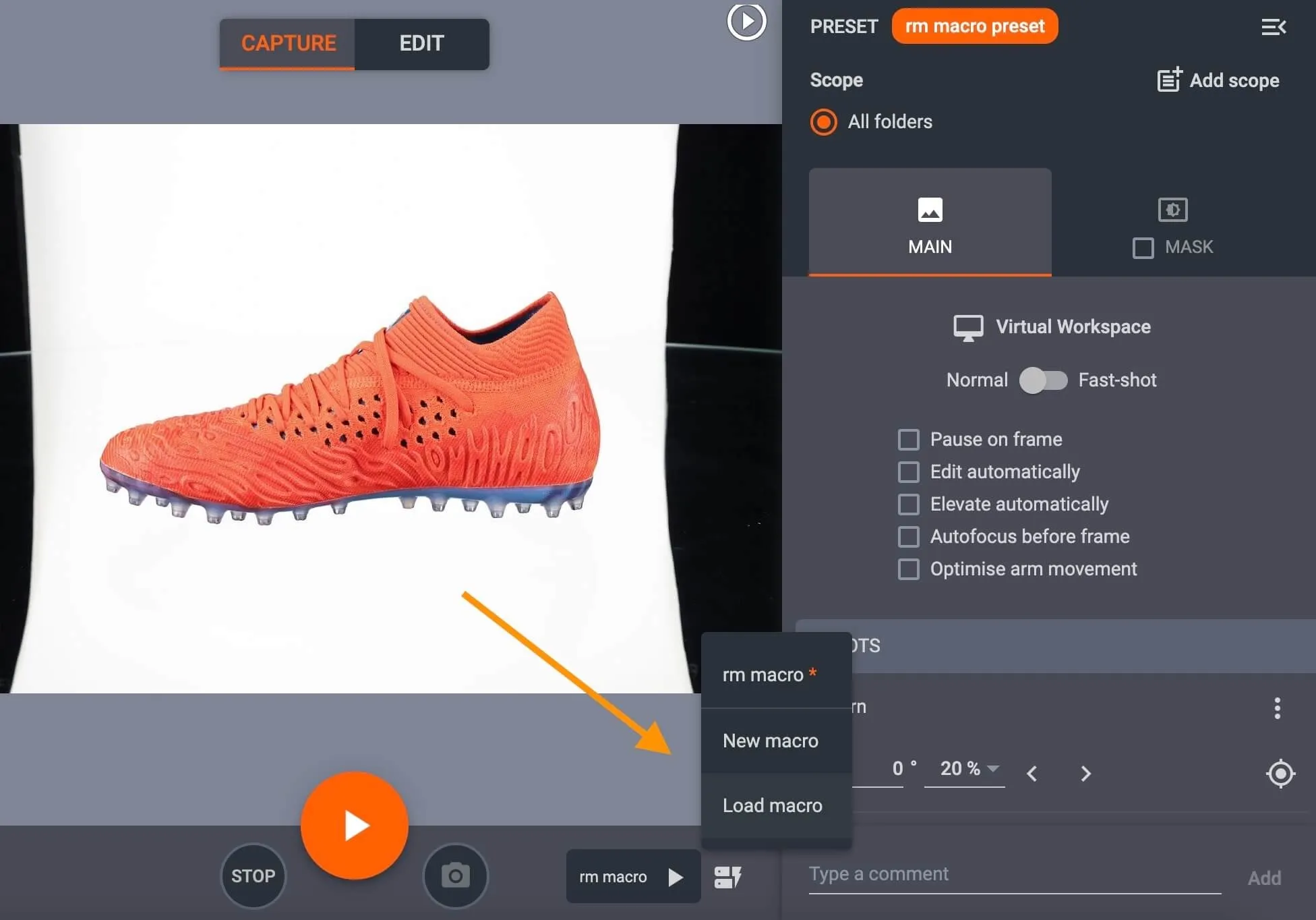
Nadat u 'n makro gekies het, sal die Play-knoppie die opnameproses uitvoer met alle makro-opdragte en voorafinstellings wat daaraan toegewys is.
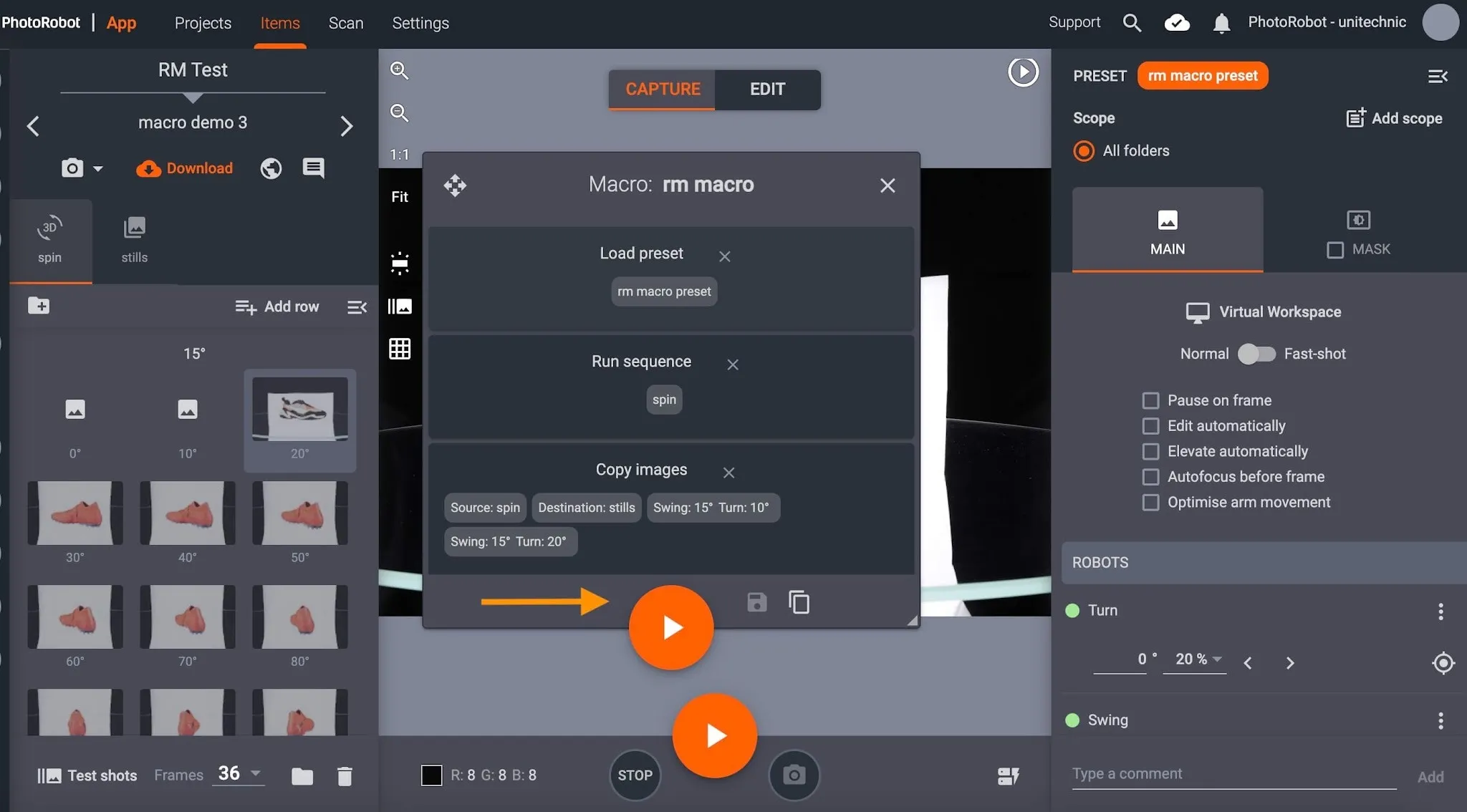
As u individuele beelde weer opneem en die makro weer laat loop, kies eers die rame om weer op te neem, en klik dan op die knoppie vir die vorige makro, of Laai makro.
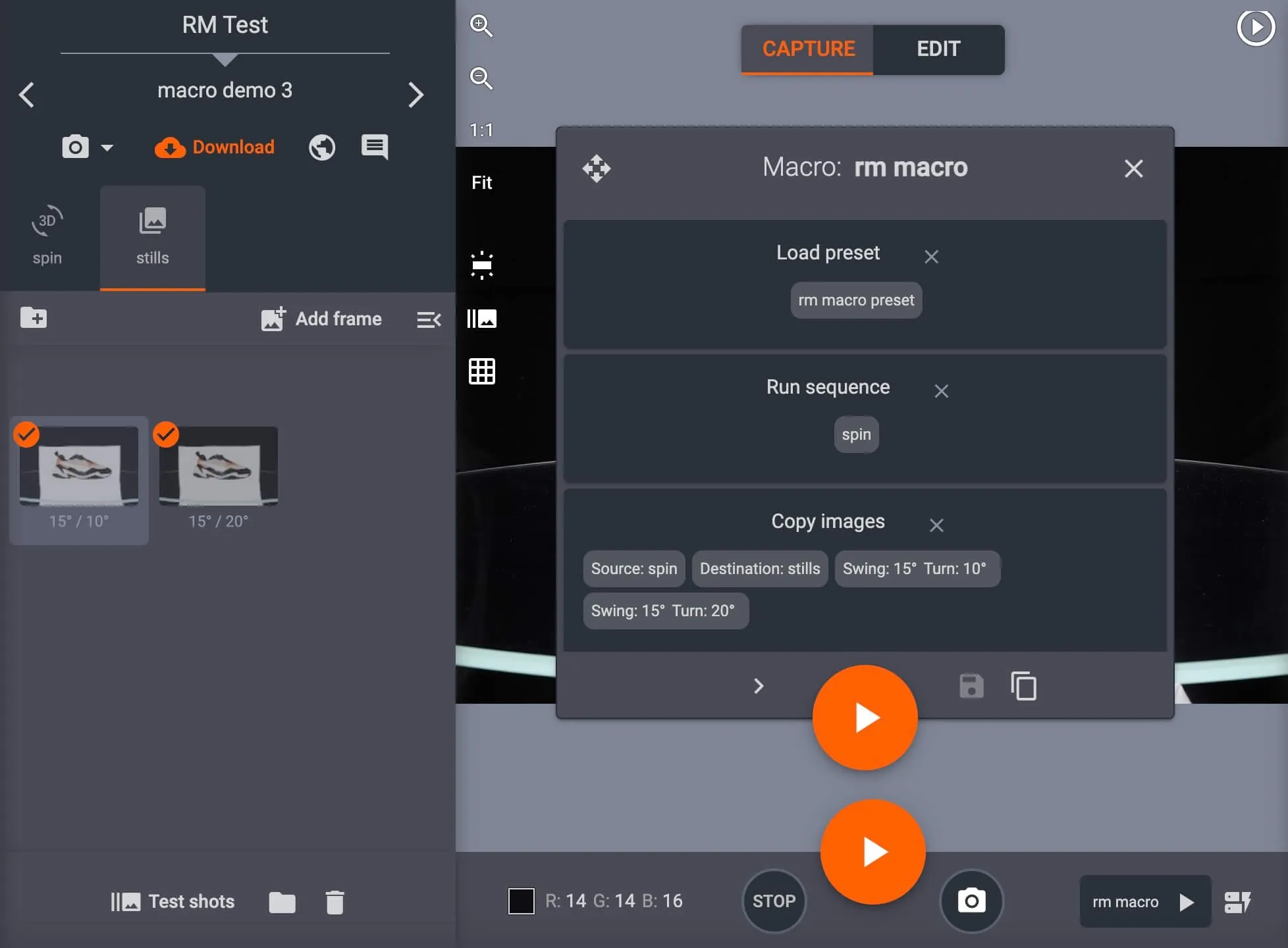
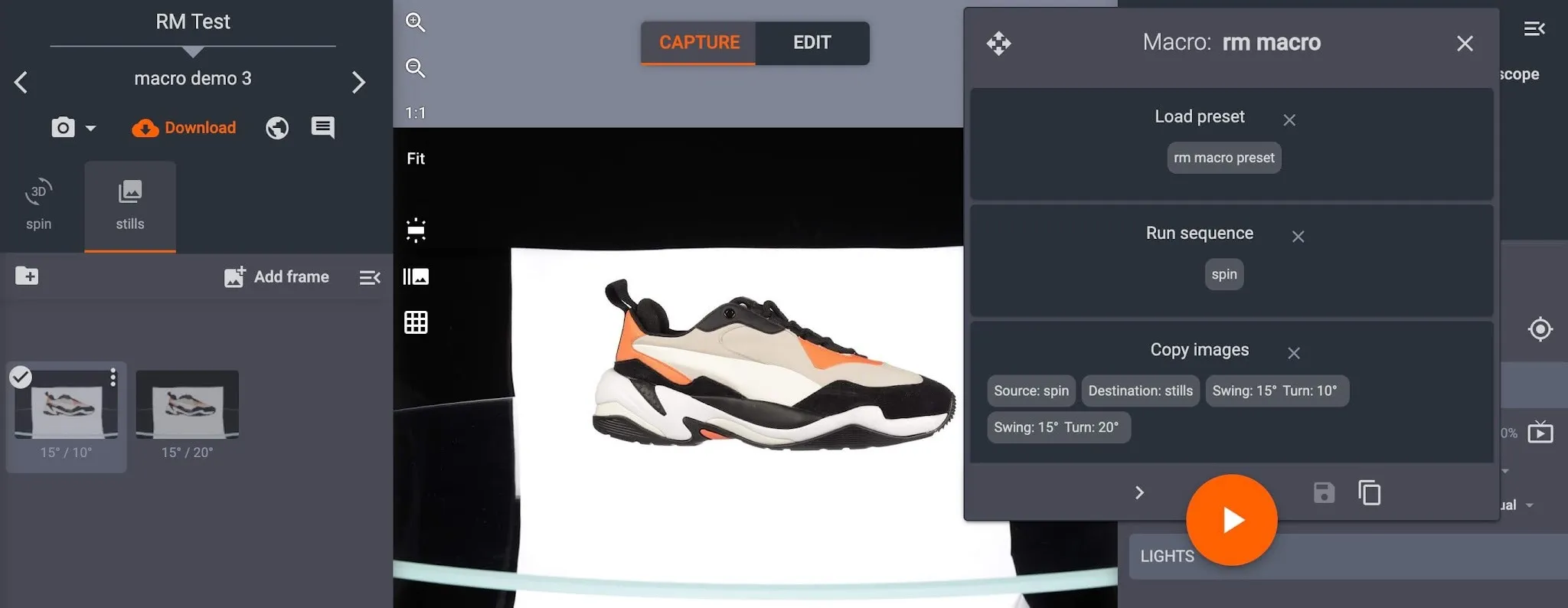
- Kontroleer die makro-opdragte, en klik op Play om die makro vir slegs die geselekteerde beelde uit te voer.
Let wel: As kopie-beelde vir 'n tweede keer uitgevoer word, sal die makro die vorige kopieë in die gids vervang met die nuwe kopieë.


EOS Rebel-reeks


EOS DSLR-reeks


EOS M spieëllose reeks


PowerShot-reeks


Close-up / Handheld

Die Canon EOS Rebel-reeks bied beginnersvriendelike DSLR-kameras met soliede beeldkwaliteit, intuïtiewe kontroles en veelsydige kenmerke. Hierdie kameras is ideaal vir fotografie-entoesiaste en bied betroubare outofokus, wisselhoekige raakskerms en Full HD- of 4K-video-opname.
Verbinding
Resolusie (MP)
Resolusie
Die Canon EOS DSLR-reeks lewer beelde van hoë gehalte, vinnige outofokus en veelsydigheid, wat dit ideaal maak vir beide fotografie en videoproduksie.
Verbinding
Resolusie (MP)
Resolusie
Die Canon EOS M Mirrorless-reeks kombineer kompakte ontwerp met DSLR-agtige werkverrigting. Met verwisselbare lense, vinnige outofokus en beeldsensors van hoë gehalte, is hierdie kameras ideaal vir reisigers en inhoudskeppers wat draagbaarheid soek sonder om beeldkwaliteit in te boet.
Verbinding
Resolusie (MP)
Resolusie
Die Canon PowerShot-reeks bied kompakte, gebruikersvriendelike kameras vir toevallige skuts en entoesiaste. Met modelle wat wissel van eenvoudige wys-en-skiet tot gevorderde zoomkameras, bied hulle gerief, soliede beeldkwaliteit en kenmerke soos beeldstabilisering en 4K-video.
Verbinding
Resolusie (MP)
Resolusie
Die Canon Close-Up & Handheld Cameras is ontwerp vir gedetailleerde, nabye fotografie en video. Kompak en maklik om te gebruik, hulle bied presisiefokus, hoë-resolusie-beelding en veelsydige makro-vermoëns - perfek vir vlogging, produkfotografie en kreatiewe nabyskote.


